
Huawei web-based management page allows you to change Wi-Fi password, Network Name (SSID), and default router settings.
Note: The default IP address, username, and password are printed on the nameplate on the bottom of the router. The settings vary depending on the router model and version of the configuration page.
| Default IP Address for Huawei | |
|---|---|
| 192.168.100.1 | |
| 192.168.8.1 | |
| 192.168.18.1 | |
| 192.168.1.1 | |
| 192.168.3.1 | |
Default Huawei Username and Password
| Username: Password: | Epuser userEp |
| Username: Password: | telecomadmin admintelecom |
| Username: Password: | admin admin |
| Username: Password: | root admin |
| Username: Password: | N/A (Check device label) |
| Username: Password: | root adminHW |
How to login to Huawei Router?
The first thing required to login is a connection between your PC and Huawei Router. You can do it either by connecting to the WiFi network of the Huawei Router or using an Ethernet Cable. Once your PC is connected to the Huawei Router, follow these steps log in to your Huawei Router’s web-based management page:
- Open a web browser and in the address bar, type the router’s default IP address: http://192.168.3.1/ and press Enter.
Note: In case the above IP address don’t work, try opening: http://192.168.100.1/, http://192.168.8.1/, http://192.168.18.1/ or http://192.168.1.1/. - You will be taken to a login page and will have to enter the login username and password to continue. The default login username and password are printed on the bottom or back of the router.
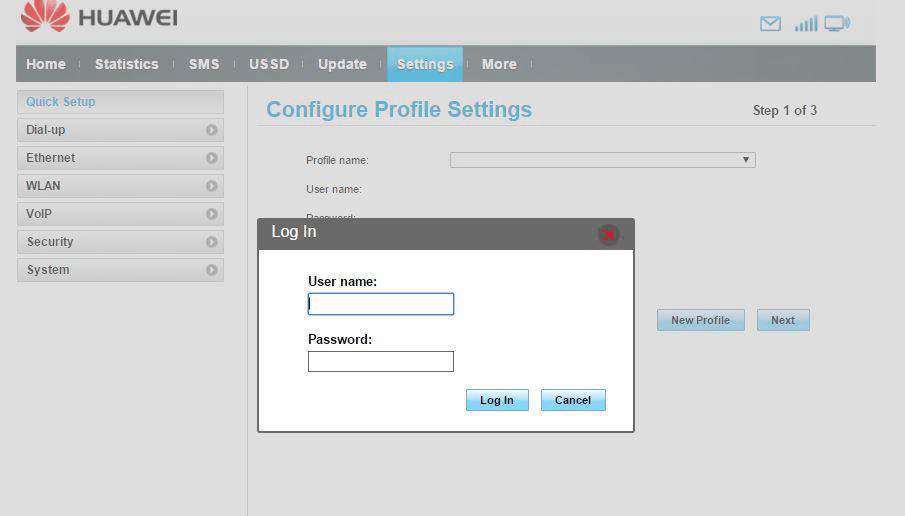
- Enter these login credentials and click on Login. (If these login credentials don’t work then check our list of default router IP address and passwords)
- You will be now logged into your Huawei Router Admin Panel.
Forgot Login Username/Password?
The default login username and password can be used to access the admin panel of the router and once you are inside the admin panel, you can change these credentials and set these as you want to. However, some people after changing the login username/password forget it and are unable to access the Admin Panel & Settings of the router anymore since it requires the login username and password to continue.
If you found yourself to be in such a situation then there is a simple solution to this and that is to perform a factory reset on the router. Performing a factory reset reverts all the settings back to factory defaults including any changed username/password. Here is how you can factory reset your Huawei Router:
- Locate the small RESET button at the back of the router.
- With your router powered on, take a paperclip or pin and press & hold the RESET button for about 5 seconds and after that let go.
- The LED lights will blink and go out and the router will restart.
- Once the router restarts, everything will be reverted back to factory defaults.
Unable to access the router login page?
If you are not able to access the router login page then here are a few reasons why that is so:
- You might not be connected to the Huawei Router. Make sure that you are connected to Huawei Router either through an Ethernet Cable or through the WiFi network.
- You are not typing in the correct IP address. Make sure that you’re typing the correct IP address in the address bar.
- The default gateway address of your router may be other than 192.168.3.1 or 192.168.1.1. Find out the default gateway address for your router and try it instead of 192.168.1.1.